Don’t set SITECORE_SPE_ELEVATION environment variable to Allow – it will break your environment on redeploy.
If you already have and your environment is down, set it back to Confirm and redeploy.
What happened
I set the SITECORE_SPE_ELEVATION environment variable on a (sandbox!) SitecoreAI environment to Allow (to stop getting prompted for elevation when running SPE scripts) and triggered a redeploy, as required for environment variable changes to take effect.
The redeploy brought the environment down. I could get into the SitecoreAI dashboard for the environment but I could not access my content, Page Builder, or the Desktop (found in the Settings).
The fix
Set SITECORE_SPE_ELEVATION back to Block or Confirm and redeploy. That’s it!
Why this is worth knowing
SITECORE_SPE_ELEVATION controls how the Sitecore PowerShell Extension (SPE) module handles permissions for running scripts. The three values are:
Block (default) — always blocks elevated sessions
Confirm — prompts for confirmation before elevating
Allow — always allows elevation, no prompt
Sitecore’s own docs mark Allow with a “Danger” callout, but don’t go into detail on what can break. In my case, it wasn’t just a scripting speed bump, it stopped the environment from redeploying successfully at all.
In short, only use Allow on a local docker-ized environment!
SitecoreAI, formerly XM Cloud, has released a new suite of AI-powered tools for marketers that open up new capabilities that go beyond the traditional CMS. In this post, we’ll explore how to setup SitecoreAI’s Signals to perform automated market research for you. Then, we’ll use the built-in agents to act upon those signals to quickly draft content.
In this scenario we’re going to imagine we’re a collectibles dealer. It’s the 30th Anniversary of Pokémon, and we want to have regular new content available to promote our Pokémon Card business during this promotional period.
Setting up Signals
Signals in SitecoreAI are market research agents that analyze trends and data in real time and provide you updates each day. You can configure these signals with a general topic, relevant industries, and a custom prompt to direct the agent when performing research on your behalf.
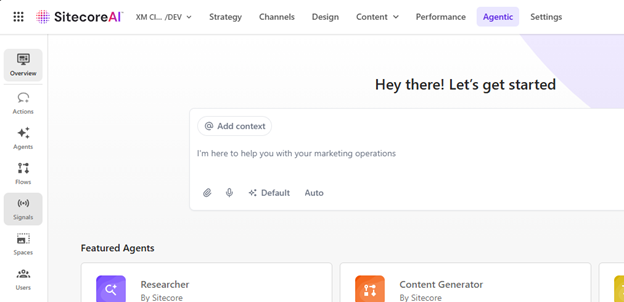
In the SitecoreAI dashboard, click Agentic on the top ribbon and then Signals on the left:
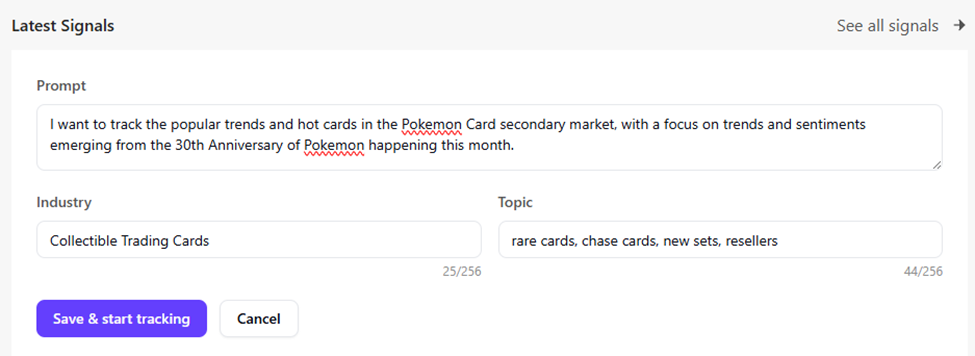
Next, let’s create a Signal. Our hypothetical business has a large inventory of trading cards we’re trying to sell. When I log into Sitecore each day, I want to see what’s happening in the collecting space and with this particular brand. I can set up a Signal to perform this research for me by defining a Topic, and Industry, and giving the agent a Prompt to guide its research.
To create the Signal, click the Edit icon on the Signals page or scroll to the bottom of the Agentic Studio landing page to find the Latest Signals section.
Once I’ve filled out my prompts, I can click Save & start tracking.
SitecoreAI will generate new Signals for me every day when I log in. If you want Signals immediately, click the Refresh icon and wait while the agent does its thing.
Here are the Signals SitecoreAI created for me from this prompt:
Analyzing Signals
Let’s open the 3rd Signal here, “Nostalgia-Driven Market Boosts in 30th Anniversary”.
Immediately I’m seeing some actionable information for our hypothetical card dealer. This Signal is telling me to stock up on Anniversary themed products if I don’t already have them, and that vintage cards are seeing price hikes.
We can dig deeper into this Signal by clicking Action Signal. This will trigger the AI agent to dig deeper into the topics of this Signal and recommend actions within the SitecoreAI studio’s capabilities.
After some thinking, SitecoreAI will generate an in-depth analysis of this signal. Digging into this I pulled some interesting suggestions from the signal and how to act upon them with Sitecore’s tools, specifically tailored to my online card-dealer business. Here’s a truncated snippet of some of that output that highlights specific tools and actions to take with those tools:
How to activate with Sitecore
Audience strategy and personalization (Sitecore CDP + Personalize)
• Segments:
• 90s/early-2000s returners: High content engagement, low recent purchase history. Personalize with nostalgia guides and entry-price bundles.
• Investors/slabbers: High AOV, graded inventory interest, price-tracker behavior.Surface grading-ready singles, pop report insights, insurance/guarantees.
...
Content and merchandising (XM Cloud + Content Hub)
• Launch a “30 Years of [Franchise]” hub: Timeline, iconic checklists, side-by-sideoriginals vs anniversary stamps
...Lifecycle messaging (Sitecore Send)
• Pre-announcement (T-45 to T-15): Teasers, waitlist capture, “what to buy” guides per segment.
...
This is an impressive framework of ideas that gets my marketing brain engaged with specific actions I might take using the tools in SitecoreAI!
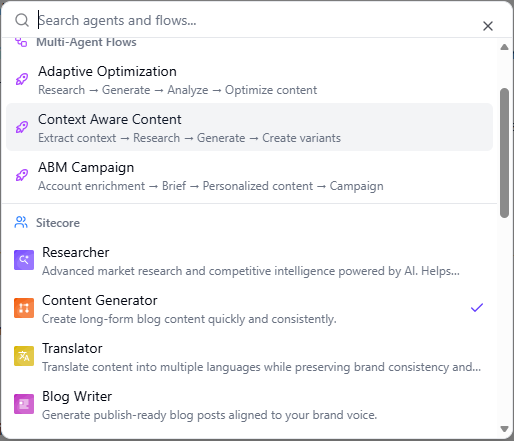
Let’s keep going. We can prompt SitecoreAI to take the output of this Signal’s analysis and act upon it with another agent. We can do this right from the chat window. In the chat box, click “Auto” and a selection of agents and flows appears:
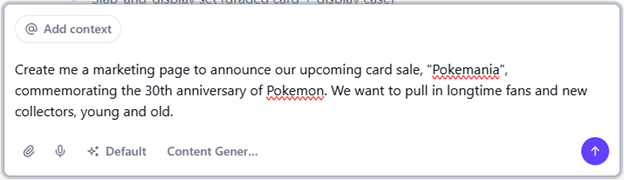
I’m going to ask SitecoreAI to create some content for my online card shop announcing our upcoming “Pokemania” card sale to our customers.
Send this to the agent and a sidebar pops up with your generated content:
From here I can edit this content, send it back to the agent with suggestions, or approve it and take it into Pages and spin up a new landing page announcing our sale.
Accelerated Marketing
In a matter of minutes, I was able to,
Set up a market research signal relevant to my business
Have an AI agent perform research on my behalf, with fresh insights available to me every morning when I log in
Action any of these signals to get concrete suggestions on how to act upon them using SitecoreAI’s toolset
Take the output of a signal and feed it to another agent in Agentic Studio to use as context for its work.
This is just scratching the surface of what we can do with the new Agentic Studio in SitecoreAI. My hypothetical online card dealer is off to a great start with this AI assistant.